
A sample of what the notification email looks like:
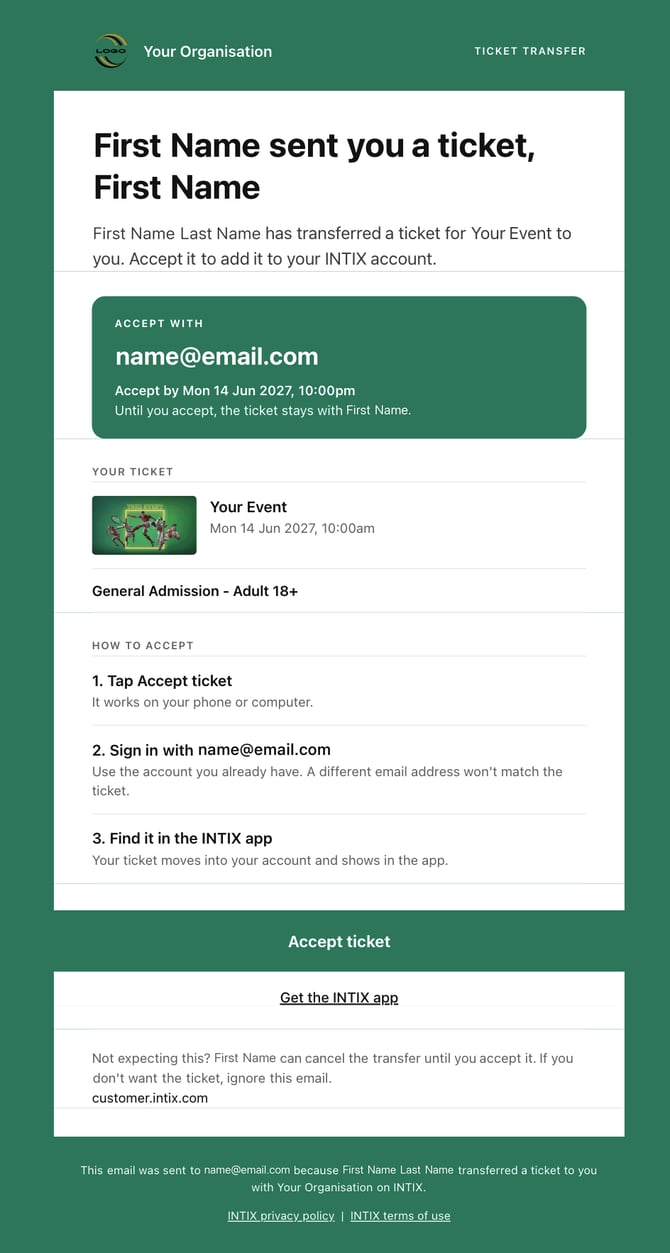
Click the 'Accept Ticket' button that takes you to the login page:
If you are receiving more than 1 ticket, select 'Accept All'
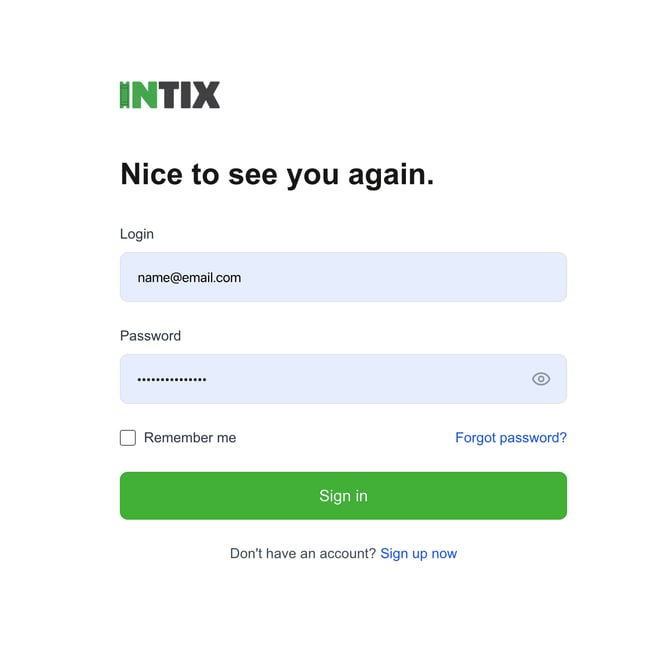
If you have an INTIX account:
- Click the "Accept" button from the email.
- Log in with your email address and password.
This attaches the forwarded ticket to your account, and you'll see it in "My Tickets".
If you don't have an INTIX account yet:
- Click the "Accept" button from the email.
- Click "Sign Up Now" from the login page and follow the prompts to create a password
This attaches the forwarded ticket to your account. View your ticket via the website in "My Tickets". Once you have created your INTIX account, you will be able to download and log into the INTIX app to view your tickets via Tickets icon.
IMPORTANT INFORMATION:
Forward / Accept: A ticket is only transferred into your account once you have accepted it via the email notification. (If you don't accept it, it is not in your account. It remains in the original attendee's account)The forwarded ticket is linked to the email address it was sent to, so you simply need to create your account and set a password using that email address. Once your account is set up, you’ll be able to accept the ticket.
The ticket must be accepted prior to the end of the event date and time. Tickets will not be able to be accepted once the event had passed.
If the event organiser has enabled Native Wallet, you will be able to add your ticket to your respective wallet in your smartphone.
Questions? Email help@intix.com